This
document describes the steps that a user can carry out to carry out Search, as
well as the required syntax to do so.
Conjunctions OR
Logical Operators
Search
Criteria allows you to restrict or affect the information displayed
in a report. Here is an example. Consider that your report database contains
the following records.
|
|
Vendor |
Details |
|||||
|
|
Vendor Name |
Voucher |
PayDate |
Invoice Date |
Voucher Amt |
Past Due |
Current Amt |
|
Vendor |
MS |
|
|
|
|
|
|
|
Details |
|
168 |
08/01/97 |
08/01/97 |
326.00 |
1000.00 |
100.00 |
|
Details |
|
169 |
08/02/97 |
08/02/97 |
4556.00 |
1200.00 |
0.00 |
|
Details |
|
170 |
08/03/97 |
08/03/97 |
14555.00 |
900.00 |
400.00 |
|
Vendor |
ABC |
|
|
|
|
|
|
|
Details |
|
177 |
08/04/97 |
08/09/97 |
678.00 |
4557.00 |
0.00 |
|
Details |
|
178 |
08/05/97 |
08/10/97 |
0.00 |
2000.00 |
400.00 |
|
Details |
|
179 |
08/29/97 |
08/11/97 |
65.00 |
3456.00 |
3400.00 |
|
Vendor |
ZM |
|
|
|
|
|
|
|
Details |
|
190 |
09/01/97 |
08/14/97 |
999.00 |
3456.00 |
0.00 |
|
Details |
|
192 |
09/02/97 |
08/15/97 |
326.00 |
1000.00 |
600.00 |
|
Details |
|
193 |
03/23/97 |
02/24/97 |
1000.00 |
326.00 |
0.00 |
|
Vendor |
Times |
|
|
|
|
|
|
|
Details |
|
200 |
03/26/97 |
02/27/97 |
678.00 |
4557.00 |
0.00 |
|
Details |
|
205 |
04/27/97 |
02/28/97 |
0.00 |
2000.00 |
0.00 |
|
Vendor |
Omega |
|
|
|
|
|
|
|
Details |
|
226 |
03/28/97 |
03/01/97 |
65.00 |
3456.00 |
100.00 |
|
Details |
|
227 |
03/29/97 |
03/02/97 |
326.00 |
2445.00 |
0.00 |
|
Details |
|
228.00 |
03/30/97 |
03/03/97 |
4556.00 |
1200.00 |
400.00 |
Without any search criteria, each time you view the report,
all records for all Vendors will be displayed. However, if you define search
criteria, you can specify the report to display only specific records.
For example, you can set one or more of the following search
criteria:
q
Display only
records for Vendor = Times.
q
Display only
records where Current Amounts are greater than $300.00.
q
Display only
Invoices for January 1997.
Steps
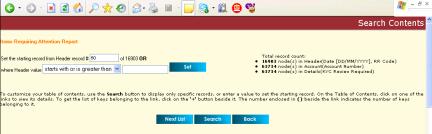
1. Select the Search Contents button on the Report page.


The Search Contents page box displays:

2. Select the Search button. The Search dialog box displays:
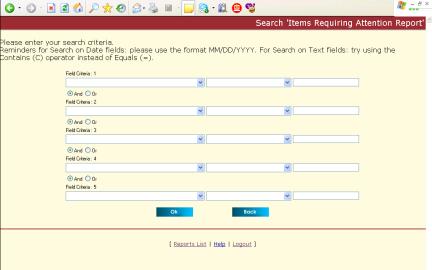
3. Define you Search criteria:
·
select a field
in the leftmost drop down list box (e.g., Account.
Account Number),
·
select an
operator in the middle drop down list box (e.g., =;). Refer to Elements of
Search Criteria), and
·
specify a
literal value into the rightmost edit control (e.g., 571234567).
4. Select OK to activate the Search.
Elements of Search Criteria
To be able to define search criteria, you must enter or
define the necessary values into the following elements of the page:
q
Fields
q
Operators
q
Literal
q
Conjunctions
Fields are the elements of the report for which you wish to
define the Search criteria. Select fields from the drop-down list provided:
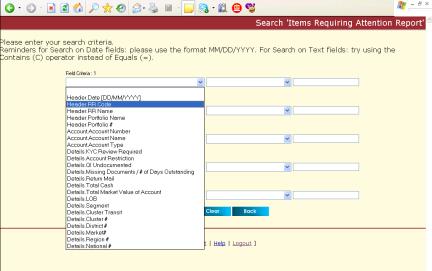

When
performing a search in the “Security Description” field, it is recommended to
use the “Contains(C)” operator.
To
search for date related fields that are “blank”, type the date 01/01/1900 in
the corresponding topic field (i.e. for RIF accounts without a 1st
payment date set-up). Do NOT leave the topic field blank; this will
produce undesired results.
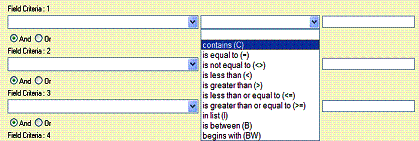
Operators
Operators allow you to compare a field in your report with
some other value. Select operators from the drop-down list provided.
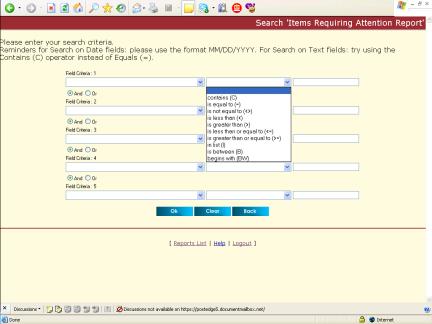
These operators you can select are as follows:
|
Contains (C) |
Use this operator to search for records containing text
fields that match particular words or phrases. Syntax Topic.Field Contains (C) <literal value> Example Details.Description Contains
(C) ABC Sample
Result The above Search Criteria will return records with
Description fields that have the following values: q
ABC Company q
The ABC Company q
MABC, Inc. |
|
Is Equal to (=) |
Use this operator to search for records containing a field
with a specific value. Syntax Topic.Field Is Equal to (=) <literal value> Special
Notes If <literal value> is a date, use the format
MM/DD/YYYY Example Details.Amount Is Equal to (=) 100 Sample
Result The above Search Criteria will return records with Amounts
exactly equal to 100. For word searches, results will only include records
where the entire word/phrase is matched. Where an exact word/phase is not
known, use the “Contains (C)” operator to perform a “key” word(s) search.
This is useful when searching for a security. |
|
Is Not Equal to (<>) |
Use this operator to search for records containing a field
with a value that does not match the literal value specified. Special
Notes If <literal value> is a date, use the format
MM/DD/YYYY Syntax Topic.Field Is Not Equal to (< >) <literal value> Example Details.Amount Is Not Equal to (< >) 100 Sample
Result The above Search Criteria will return records with Amounts
that have the following sample values: q
101 q
0 q
1000 |
|
Is Less Than (<) |
Use this operator to search for records containing a field
with a value less than the literal value specified. Syntax Topic.Field Is Less Than (<) <literal value> Special
Notes If <literal value> is a date, use the format
MM/DD/YYYY Example Details.Amount Is Less Than (<) 100 Sample
Result The above Search Criteria will return records with Amounts
that have the following sample values: q
99 q
0 q
10 |
|
Is Greater Than (>) |
Use this operator to search for records containing a field
with a value greater than the literal value specified. Syntax Topic.Field Is Greater Than (>) <literal value> Special
Notes If <literal value> is a date, use the format
MM/DD/YYYY Example Details.Amount Is Greater Than (>) 100 Sample
Result The above Search Criteria will return records with Amounts
that have the following sample values: q
101 q
102 q
1000 |
|
Is Less Than or Equal To (<=) |
Use this operator to search for records containing a field
with a value less than or equal to the literal value specified. Syntax Topic.Field Is Less Than (<=) <literal value> Special
Notes If <literal value> is a date, use the format
MM/DD/YYYY Example Details.Amount Is Less Than (<=) 100 Sample
Result The above Search Criteria will return records with Amounts
that have the following sample values: q
99 q
100 q
10 |
|
Is Greater Than or Equal To (>=) |
Use this operator to search for records containing a field
with a value greater than the literal value specified. Syntax Topic.Field Is Greater Than (>=) <literal value> Special
Notes If <literal value> is a date, use the format
MM/DD/YYYY Example Details.Amount Is Greater Than (>=) 100 Sample
Result The above Search Criteria will return records with Amounts
that have the following sample values: q
100 q
102 q
1000 |
|
In List (I) |
Use this operator to search for records containing a field
that may have one of several values. Use the pipe character (|) to separate multiple literal
values. You may supply as many literal values as can be accommodated in the
text box. Syntax Topic.Field In List (I) <value 1>|<value2>|<value n> Special
Notes If <literal value> is a date, use the format
MM/DD/YYYY Example Details.CompanyName
In List (I) ABC|DEF|XYZ Sample
Result The above Search Criteria will return records with the
following Company Names: q
ABC q
DEF q
XYZ |
|
Is Between (B) |
Use this operator to search for records containing a field
whose value falls between a range (i.e., a minimum and maximum value). Use the pipe character (|) to separate the minimum and
maximum value. Note that this operator is INCLUSIVE: it includes in it’s
result list the minimum and maximum values. Syntax Topic.Field Is Between (B) <minvalue>|<maxvalue> Special
Notes If <literal value> is a date, use the format
MM/DD/YYYY Example Details.Amount Is Between (B) 100|200 Sample
Result The above Search Criteria will return records with Amounts
that have the following sample values: q
100 q
101 q
150 q
200 |
|
Begins With ( BW) |
Use this operator to search for records containing text
fields that begin with. Syntax Topic.Field Begins With ( BW) <literal
value> Special
Notes If <literal value> is a date, use the format
MM/DD/YYYY Example Details.Description Begins
With ( BW) ABC Sample
Result The above Search Criteria will return records with
Description fields that have the following values: q
ABC Company q
ABC123, Inc q
ABC The above Search Criteria will NOT return records with
Description fields that have the following values: q
The ABC Company q
MABC, Inc. |
This allows you to enter any value or character, whether
real, integer, string or data.
When If you want to enter values for the In, Between and Begins With operators, use | between the maximum and minimum
values.
Conjunctions OR Logical Operators
Logical Operators allow you to combine several search
criteria together, to define a more complex search.

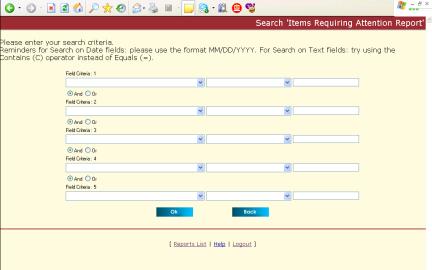
The following table explains how AND and OR works:
|
Example |
Name |
Result |
|
Field
Criteria 1 AND Field Criteria 2 |
AND |
TRUE if both Field Criteria 1 AND
Field Criteria 2 are TRUE. Example: Details.CompanyName
= ABC Will only return records where the Company Name is ABC and
NetWorth is 1,000,000.00 |
|
Field
Criteria 1 OR Field Criteria 2 |
OR |
TRUE if either Field Criteria 1 AND
Field Criteria 2 is TRUE. Example: Details.CompanyName
= ABC Will only return records where the Company Name is ABC OR
NetWorth is 1,000,000.00 The Sample Result list would be: q
Company Name = ABC q
Company Name = XYZ q
Company Name = My
Company |
n
eof